How To Remove Amazon Assistant Virus
In this tutorial, we will be explaining how to easily remove Amazon Assistant virus. Click the link to read full guide...
Author:Daniel BarrettApr 25, 20221.3K Shares265.1K Views
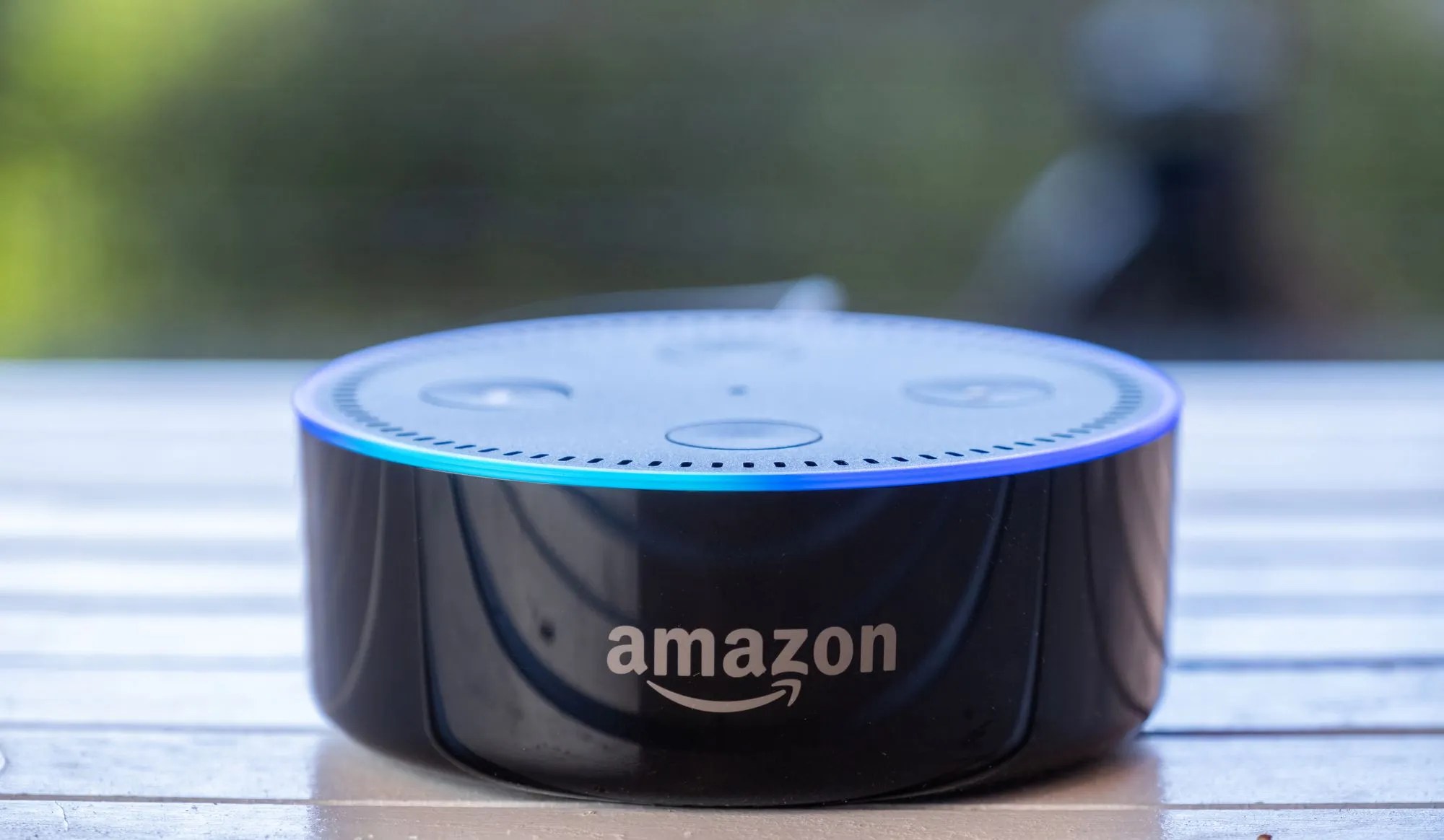
Amazon Assistance is a web browser extension designed and developed by Amazon to help share the attractive-looking offers and deals on Amazon among the users. However, the application causes many undesirable activities and falls in the PUP category. In this article, we will be explaining how to remove the Amazon Assistant virus.
Furthermore, this tool is available for installation on App Store, Play Store, and Amazon’s official website. However, while installing, the application may come bundled with several other programs and force unwanted changes on your browser apps.
Everything You Need To Know About Amazon Assistant Virus
Is Amazon Assistant a virus? Technically, it’s not. Amazon Assistant is a legitimate browser extension designed to improve the shopping experience by providing the best offers from Amazon.
How To Remove Amazon Assistant virus From Your Computer System
There are several steps to removing the Amazon Assistant virus from your PC. First, you need to delete any suspicious apps downloaded just before you notice the malware. Then it’s time to remove the malicious extension from your web browsers. Here’s how to get it done:
1. Via Windows XP:
- On your Windows, click on the Start button.
- Choose Control Panel and select Programs and Features.
- Next, click Add/Remove Program.
2. Via Windows 8 And 10:
- Right-click the lower-left corner of your computer screen.
- You’ll notice the Quick Access Menu appear. Just choose Control Panel and Uninstall the Program.
How To Remove Amazon Assistant virus From Your Computer System
To remove Amazon Assistant from your Mac OS X system device, follow the steps below to get it done
1. Via Amazon Assistant Application:
- Click on the Go button at the top left corner of your screen on your Mac OS X PC and then select Application.
- Wait a moment for the Applications folder to show up, and now check for the Amazon Assistance program or other suspicious programs.
- Right-click on the entries to choose the Move to Trash option.
- Once you’ve pushed the Move to Trash option, you’ll notice those programs have disappeared.
2. CleanMyMac X Software
CleanMyMac X is one of the best options for you today, and Apple notarizes it. However, follow the below steps to learn how to get it done:
- First, download and install CleanMyMac X (at no cost).
- Next, launch it and select Malware Removal on the left-side panel.
- Press Scan.
How To Remove Amazon Assistant virus From All Your Browsers
1. Safari Browser
- Open your Safari browser.
- Now, go to the Safari Menu Preferences at the top of the screen.
- Select the Extension tab and check for the suspicious one.
- Once located, click on it and push Uninstall.
2. Chrome Browser
- Launch Chrome and paste ‘chrome://extensions’ to the address bar.
- Then, please navigate to the list of the Malicious extension and choose to Remove next to it.
3. Mozilla Firefox
- Open your Mozilla Firefox browser and push the Menu Button.
- Choose Add-on > Extensions.
- Now, try to locate Amazon Assistant in the Manage Your Extensions section.
- Click on it and then click on the three-dot menu and press Remove
Editor’s picks:
Jump to
Everything You Need To Know About Amazon Assistant Virus
How To Remove Amazon Assistant virus From Your Computer System
1. Via Windows XP:
2. Via Windows 8 And 10:
How To Remove Amazon Assistant virus From Your Computer System
1. Via Amazon Assistant Application:
2. CleanMyMac X Software
How To Remove Amazon Assistant virus From All Your Browsers
1. Safari Browser
2. Chrome Browser
3. Mozilla Firefox

Daniel Barrett
Author
Daniel Barrett is a tech writer focusing on IoT, gadgets, software, and cryptocurrencies. With a keen interest in emerging technologies, Daniel offers expert analysis and commentary on industry trends. Follow him for authoritative insights into the latest tech innovations.
Latest Articles
Popular Articles