What to Do When Google Says Your Computer May Be Sending Automated Queries
In this article, we will be explaining what to do when Google says your computer may be sending automated queries.
Author:Daniel BarrettMay 16, 2022470 Shares470.1K Views
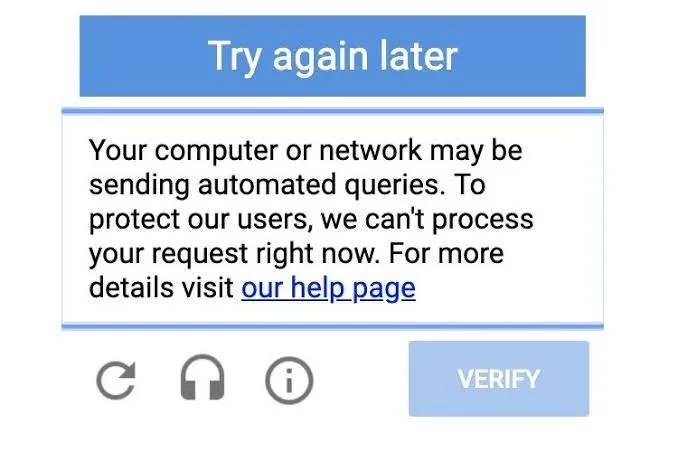
Sending Automated queries can be annoying, but it doesn’t happen often. However, you can get a cryptic error message from Google telling you that your computer may be sending out automated queries, and so Google is blocking your search request. In this article, we will be explaining what to do when Google says your computer may be sending automated queries.
Once you’ve noticed this kind of error report, you must double-check your PCsettings and ensure they are perfectly set up.
What this Error Message Means
This error message always occurs whenever Google notices some suspicious activities on your IP address and its servers. An automated query usually comes in rapid succession and large volume.
What To Do When My Computer Is Sending Automated Queries?
Here are different ways to troubleshoot this error message and stop the warning from appearing again.
Method 1: Close Any Background Running Program
Background running software or application can hinder your ability to load websites correctly. You can do this by right-clicking on an app icon in the taskbar and choosing the Close or Close all windows option from the context menu.
Method 2: Clear Out Your Cookies
Another way to stop sending automated queries is by clearing your browser’s cookies. You can correct this error message. However, part of how Google identifies your computer may be through the cookies stored in the browser.
Clearing your cookies depends on which kind of browser you use. First, however, check our How-To page to see how to remove all browsers’ cookies.
Method 3. Scan Your Computer for Malware
Viruses and malware can be the causes of the problem you’re facing. We strongly recommend scanning your PC for Malware Or virus. Computer always has some harmful program that can trigger applications to crash or cause the automated queries warning. We’ll use the Windows Defender built-in program to check, but a different third-party software may work better. Here’s how:
- Click on the magnifying glass icon to open the search bar, or instead, you use the Windows + S keyboard shortcut.
- Type in Windows Security and click on it from the search results.
- Locate and switch to the Virus & Threat Protection tab using the home screen or the menu in the left-side pane.
- Click on the Scan Options link.
- Choose the full scan option.
- Click on the Scan now button to begin the scan.
Editor’s picks:

Daniel Barrett
Author
Daniel Barrett is a tech writer focusing on IoT, gadgets, software, and cryptocurrencies. With a keen interest in emerging technologies, Daniel offers expert analysis and commentary on industry trends. Follow him for authoritative insights into the latest tech innovations.
Latest Articles
Popular Articles