How to Fix WiFi Authentication Error on Android
A WiFi authentication error can occur for many reasons. In this tutorial, we will explain how to fix the Wi-Fi Authentication error on Android
Author:Daniel BarrettJun 06, 2022263.4K Shares4M Views
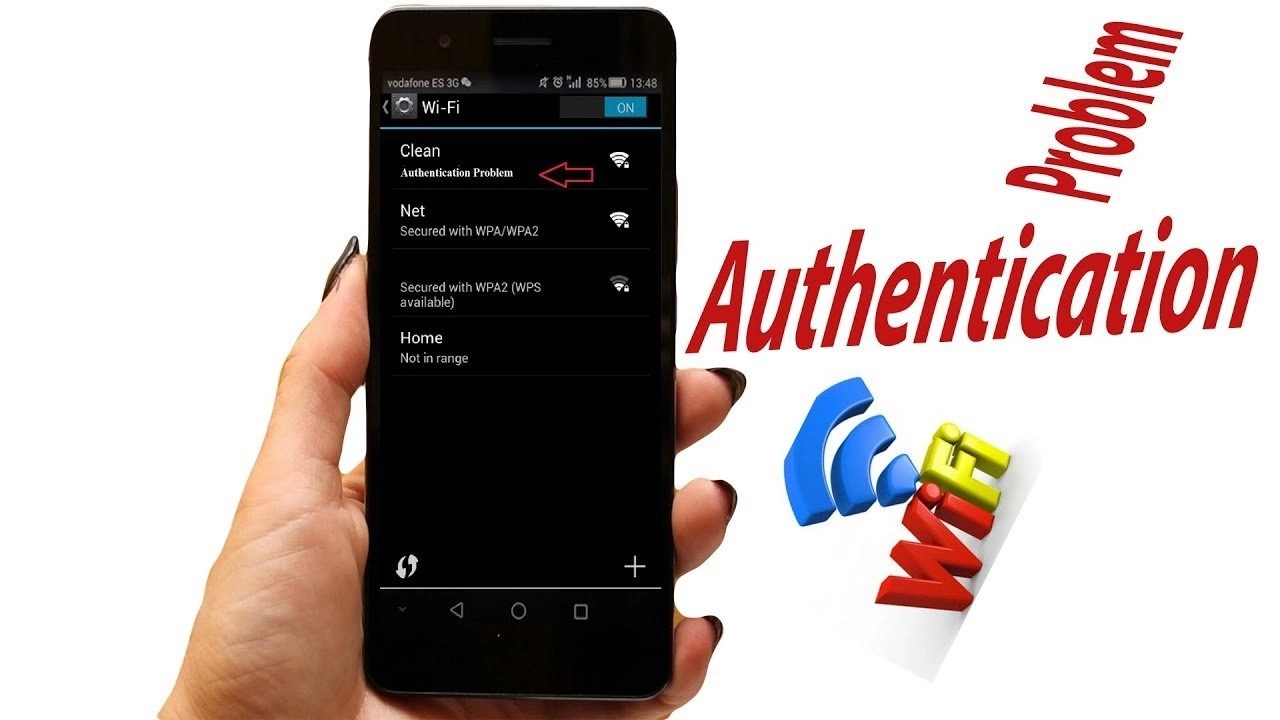
A Wi-Fi authentication error can occur for many reasons. Part of the reason is when the “handshake” between a router and a device fails. So how do you fix this? In this tutorial, we will explain how to fix the Wi-Fi Authentication error on Android.
Restart Your Device
Restarting your device provides solutions to many issues, such as bugs and glitches.
Toggle Airplane Mode On and Off
Another credible way to solve Wi-Fi authentication errors is to turn the airplane mode on your phone on and off.
Reset The Wi-Fi Network
- Open the Settings on the device and tap on Wi-Fi.
- Select the network you want to connect to.
- Locate the setting to “Forget the network.”
- Go back to your Wi-Fi settings and select the same network again.
- Enter the password and allow it to connect to the network.
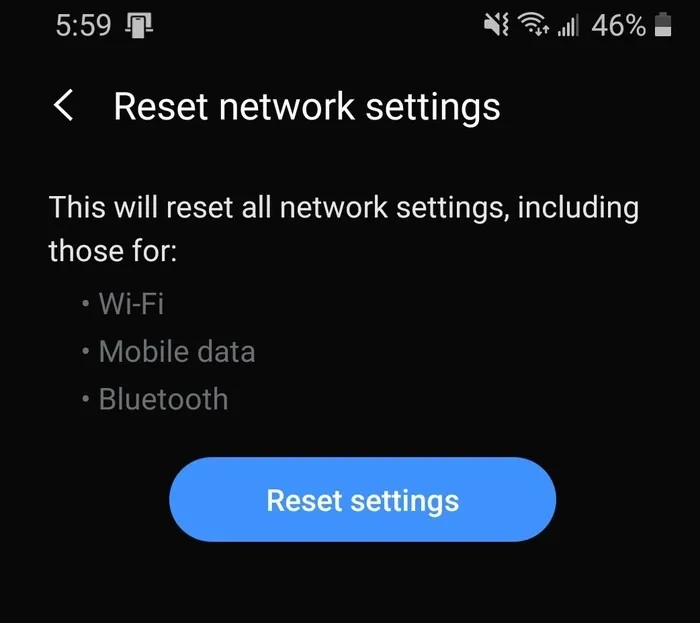
Reset Network Settings
- Open the Settings and look for “Reset network settings.”
- Tap “Reset Settings” and confirm the reset.
Check Maximum Devices Supported
The authentication error can happen if there’s too much traffic (devices) connected to the network. Open your router’s settings, disable a few devices, and then try to connect again.
Restart The Router
Restart the router by switching it off for 30 seconds and then on again, and reconnect your phone to the network once the router is up.
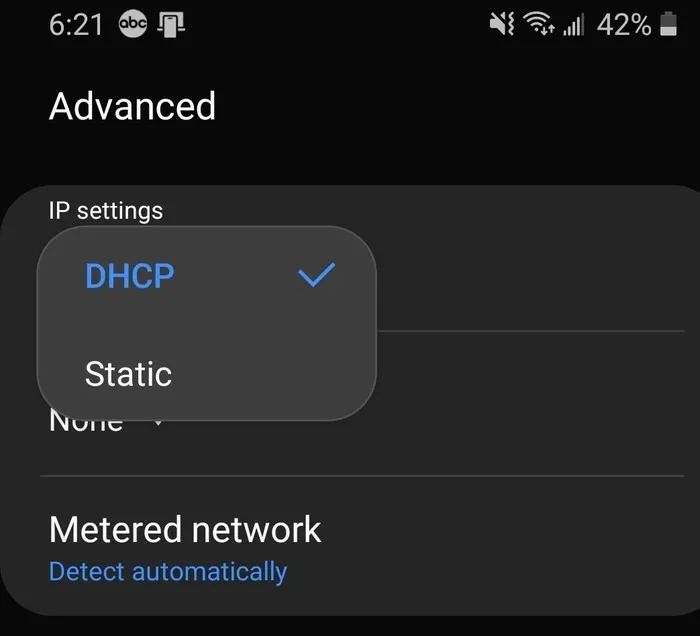
Change From DHCP To Static (To Get The Wi-Fi Network Working Properly)
- Click the Start menu on Your Windows
- Type cmd and open the command prompt.
- Type the command ipconfig/all in the command prompt and press Enter.
Focus on the Default Gateway, the IPv4 address, and the DNS Servers.
Editor’s picks:

Daniel Barrett
Author
Daniel Barrett is a tech writer focusing on IoT, gadgets, software, and cryptocurrencies. With a keen interest in emerging technologies, Daniel offers expert analysis and commentary on industry trends. Follow him for authoritative insights into the latest tech innovations.
Latest Articles
Popular Articles